
Build, check and schedule campaigns in one editor.
Drag blocks onto a canvas, personalize them, run the pre-send checks, then send now, schedule it, or set it to repeat. Everything happens inside the campaign builder.
Free plan available. No credit card required.
Campaign builder
Autumn newsletter
Read more
Campaign settings
Subject
Three new things this week
Set
Preheader
Short preview text
Set
Lists
2 selected
Desktop
Mobile
Dark mode
Sample data
Drag-and-drop email canvas
Spam and compatibility checks before sending
A/B tests with automatic winner
Schedule, repeat, or send by time zone
The canvas
Build from blocks, not from code
Add a block, click it, and edit the text or style in the side panel. Reorder by dragging, duplicate or delete from the block toolbar, add a block directly below the selected one, and undo anything with Ctrl+Z. Keyboard shortcuts cover bold, italic, links and duplicate, and an Issues list flags images without alt text, buttons without a link and hard-to-read button text while you build. Save your logo, colours and fonts once in a brand kit, and give each sending domain its own kit if you run several brands.
Heading, text, button, image, columns, survey, divider, spacer, social icons and custom HTML
Hide a block on desktop or on mobile
Show or hide content based on tags or fields
Preview on desktop, mobile and in dark mode
Add a block
Blocks
Heading
Text
Button
Image
Columns
Survey
Divider
Spacer
Social
HTML
Store blocks
Product
Product grid
Bestsellers
Cart snapshot
Coupon
AI toolbar
Subject line suggestions
Option 1
Your autumn range is here
Option 2
Three new things worth a look
Option 3
A small thank-you for subscribers
Tone check: matches your brand voice
AI in the editor
Draft copy where you are editing it
The AI toolbar sits above the canvas. Describe the email in a few lines and it drafts the whole thing, or select one block and ask for a rewrite. It also suggests subject lines and preheaders and checks the tone against your brand voice.
Full email drafts, subject lines, preheaders
Rewrite one block without touching the rest
Tone check, image alt text, A/B variants
Credits are included on every paid plan
Review and send
One screen for the checks
Before you send, the review step runs through a compliance checklist, scores the email for spam risk, tests rendering across email clients, checks accessibility such as alt text and low contrast, and lets you preview it as a real contact. The checklist also stops a send when a button has no working link, and your mailing address is added to the footer if it is missing. The spam score is on Growth and above. Rendering and accessibility checks, and rehearsal with digital twins, are on Pro and above.
Review & Send
Spam score
Low
risk
Sample data
Pre-send checklist
Unsubscribe link
Passed
Sender address
Passed
Alt text on images
2 missing
Email client compatibility
Gmail
OK
Outlook
Warning
Apple Mail
OK
Rehearsal with digital twins (Pro and above)
Twin, frequent buyer
Opens right away. The offer is clear.
Twin, lapsed 90 days
Would skim. The first line is too long.
A/B testing
Test on a slice, send the winner to the rest
Turn on A/B testing, write variation B, and choose what share of the list takes part. After the wait time you set, the better version by opens or clicks goes to everyone else. Automatic opens, such as Apple Mail Privacy Protection, are ignored when the winner is picked by opens, unless you switch them on.
Test sample size and wait time are yours to set
Winner by opens or clicks
Subject line and content tests from Growth, none on Free or Starter
A/B test
Variation results
A: Your autumn range is here
23.1%
B: Three new things worth a look
28.4%
Test sample
20% of list
Winner after
4 hours
Winner metric
Opens
Sample data
Scheduling
Send now, later, or on repeat
Pick a date and time, or make the campaign recurring every day, week, two weeks or month. Everything you have planned shows on the campaign calendar.
Send in each contact's own time zone, if you schedule 26 hours ahead or more
Frequency caps skip contacts who already reached your daily or weekly maximum
Send-time optimization on Pro and above
Resend to non-openers after 1 to 14 days, with an optional new subject
Only send to contacts who opened or clicked recently
Calendar
Campaign calendar
Mon
Tue
Wed
Thu
Fri
Sat
Sun
1
2
Offer
3
4
5
Newsletter
6
7
Sample data
Reuse
Templates, saved blocks and version history
Save a design as a template, or just one block to your library, and load it into any campaign. Saved templates keep their earlier versions. Open the history, preview one, and restore it.
Media library for images you reuse, with AI alt text
Personalization tags in subject, preheader and body
Preview as a specific contact before sending
Duplicate any campaign, and reschedule it from the calendar
Publish sent campaigns to a web archive with embeddable widgets, on Starter and above
Spring offer template
Template version history
Version 4, current
Today, 10:12
Version 3
Yesterday, 16:40
Version 2
28 Sep, 09:05
Version 1
26 Sep, 14:22
Preview
Restore
Sample data
For stores
Connect a WooCommerce or Shopify store and sell from the email
Product blocks
Product, product grid, bestsellers and cart snapshot blocks pull items from your store.
Unique coupon codes
Generate a one-use coupon for each recipient. Needs the Growth plan or above.
Revenue attribution
See which campaign earned which order.
About ecommerce
Workflow
From new campaign to sent
01
Set up
Name it, write the subject and preheader, pick lists and segments.
02
Design
Build the email with blocks and add personalization.
03
Review
Run the checks, preview, send yourself a test.
04
Send
Send now, schedule, or repeat. Read results in Analytics, where Pro and above add click heatmaps and campaign comparison.
See it in the app
The campaign builder
Name the campaign, set the subject, pick a sender domain, then choose the lists and segments it goes to.
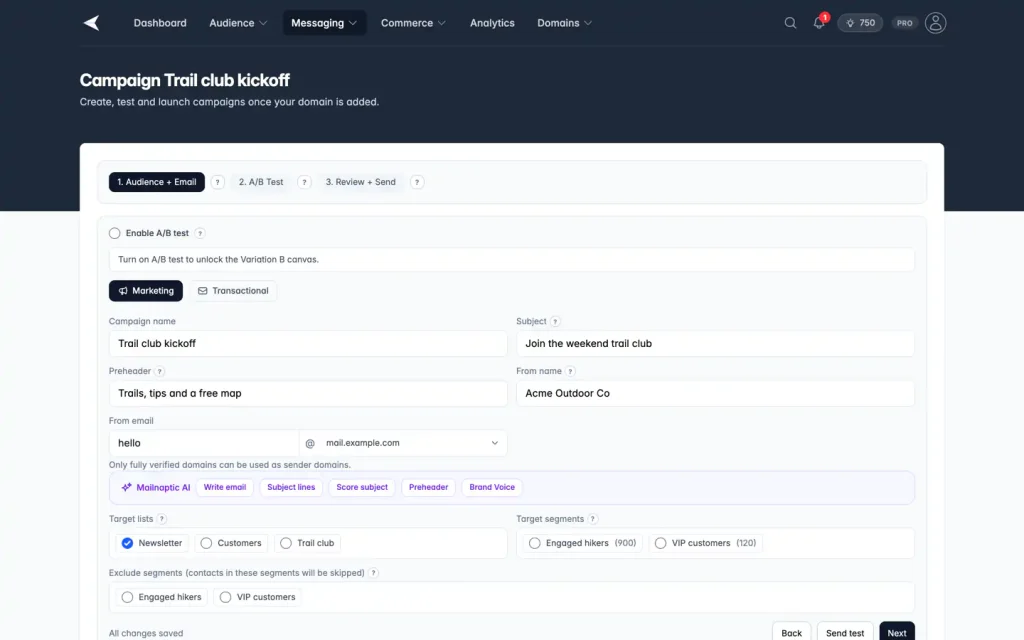
Screenshot with sample data.
FAQ
Questions, answered
Can I send a test before the real send?
Yes. The builder has a Send test option, and the review step shows a rendered preview as a contact you pick. Test emails can go to your team and a limited number of other addresses a day, and they must come from a verified sending domain.
Do Apple Mail Privacy Protection opens affect a test winner?
Not by default. Apple Mail Privacy Protection, the Gmail image proxy and security scanners open emails automatically, so Mailnaptic tags those opens and ignores them when it picks an A/B winner by opens. Your total opens and open rate still include them. An owner or admin can count automatic opens in the organization deliverability settings.
Which plans have A/B testing?
Not on Free or Starter. Subject line tests and content tests both start on Growth. Pro and Business have the same campaign tests. Split tests inside an automation can send contacts down 2 to 5 branches.
Can I exclude a segment?
Yes, on Pro and above. Pick segments to exclude when you choose the audience.
What happens with transactional campaigns?
The builder has a campaign type for transactional email. It skips suppression, so use it only for messages people expect, like receipts. It is available on Pro and above.
Send your next campaign from one place
Design it, check it and schedule it without leaving the editor.
No credit card required. Free plan available.