
See what your emails actually did.
Analytics shows opens, clicks, bounces and complaints for every campaign, and separates human opens from automatic ones such as Apple Mail Privacy Protection. You can look at one send, one sending domain, or a date range, and export the numbers as CSV.
Free plan available. No credit card required.
Analytics, last 30 days
Sent
48,210
+6.2%
Opened
18,402
+3.1%
Clicked
2,964
+0.8%
Sample data
Reports for all campaigns or just one
Click heatmap per campaign
Compare up to ten campaigns
Scheduled email reports
Dashboard
The main Analytics page
Pick 7, 30, 90, 180 or 365 days, or a custom range. Filter by campaign or by sending domain. The panels below are the ones on the page.
Analytics
Sent
48,210
+6.2%
Delivered
47,560
+6.0%
Opened
18,402
+3.1%
Clicked
2,964
+0.8%
Complaints
12
-4
Performance over time
Best send times
6
8
10
12
14
16
18
20
22
0
2
4
Top clicked links
/spring-sale
1,104
/new-arrivals
728
/journal
391
Devices
Mobile
64%
Desktop
31%
Tablet
5%
Top countries by opens
United States
48%
United Kingdom
17%
Germany
9%
Sample data
Campaign: Spring sale, Heatmap
Spring sale
Shop now
Link performance
Shop now button
612
Hero image
284
Footer: journal
94
Sample data
Click heatmap
See where people clicked inside the email
Open a sent campaign and switch to its Heatmap tab. The email is drawn with heat over the spots that got clicks, and a list underneath ranks each link.
Heat overlay on the actual email layout
Link performance for every link in it
Available on Pro and above
Comparison
Put campaigns next to each other
Choose between two and ten campaigns. Metrics are grouped into reach, engagement and volume, and the better figure in each row is highlighted.
Recipients, delivered, failed
Open rate, click rate, unique opens and clicks
Total opens and clicks
Available on Pro and above
Campaign comparison
Metric
Spring sale
Newsletter
Restock
Recipients
12,400
12,380
4,100
Open rate
38.2%
34.6%
41.0%
Click rate
6.1%
4.2%
7.3%
Unique clicks
757
520
299
Sample data
AI tab
8/10
score
Headline
Strong click rate, average opens.
What worked
One clear button, placed above the fold.
Try next
Test a shorter subject line against this one.
Audience health
72 / 100
Sample data
AI campaign feedback
A write-up after each send
Once a campaign has been sent, you can ask the AI to read its results. You get a score out of 10, what worked and what did not, actions for your next send, feedback on the copy, and a comparison to your own history. It runs once per campaign and uses no AI credits.
Needs the Growth plan or above
No AI credits for this write-up
Audience analysis with health score and suggested segments: 5 credits, Pro and above
Per-contact predictions
Who is likely to open, click or leave
Open a contact and load predictions. You see an open probability, a click probability, and a churn risk rated low, medium, high or critical, with a suggested action. The Contacts page has a list hygiene tool for cold contacts.
Churn risk with a recommended action
List hygiene for contacts who stopped engaging
Engagement-gated sending in the campaign builder
Contact: Jordan Lee
Predictions
Open probability
62%
Click probability
11%
Churn risk
Suggested: send a re-engagement email
Medium
Sample data
Scheduled Reports
Name
Type
Frequency
Status
Monthly summary
Campaign Summary
Monthly
Active
List health
List Growth
Weekly
Active
Reputation
Deliverability
Weekly
Paused
Sample data
Scheduled reports
Reports that arrive by email
Under Organization settings you can create a report, pick the type and frequency, and list the recipients. Pause or edit it whenever you like.
Campaign summary, list growth, or deliverability
Weekly on Pro, daily and custom schedules on Business
Several recipients per report
Scheduled reports are not on Starter or Growth
Related
Other places results show up
Revenue attribution
With a store connected, see revenue earned by each campaign and automation. Growth plan and above.
About ecommerce
Deliverability
Authentication status and Google Postmaster data sit alongside your bounce and complaint numbers.
About deliverability
Survey responses
Add a survey block to an email, then read the answers in analytics.
About campaigns
Workflow
After you hit send
01
Watch the numbers
Deliveries, opens, clicks, bounces and complaints update as they happen.
02
Dig into one campaign
Open the Metrics, AI or Heatmap tabs.
03
Decide the next send
Build a segment of clickers or test a new subject line.
See it in the app
The analytics page
Sent, opens, clicks, bounces and unsubscribes in one view, with an engagement funnel.
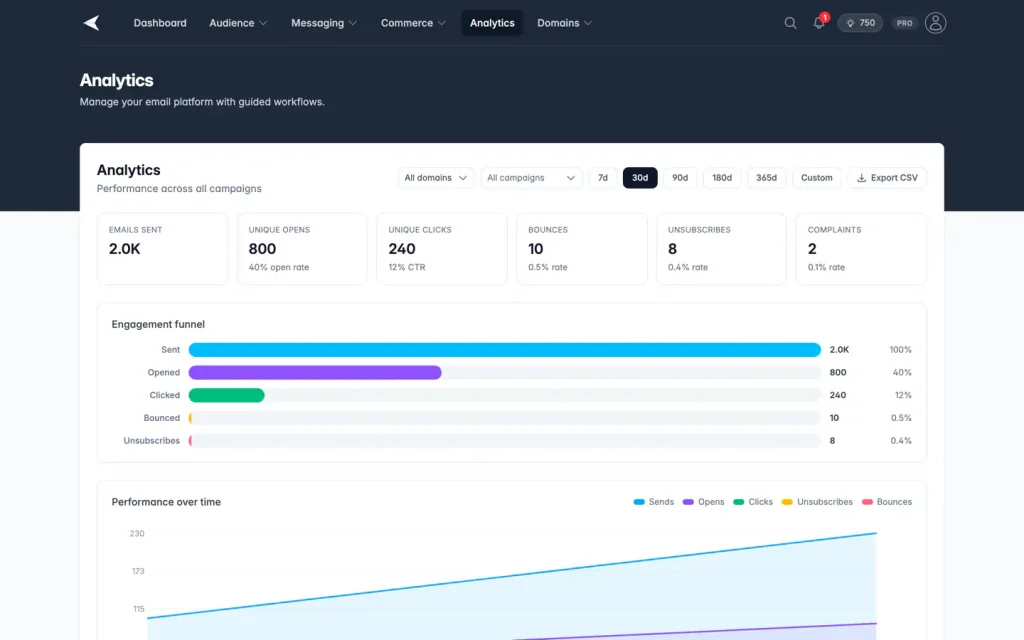
Screenshot with sample data.
FAQ
Questions, answered
Can I export the data?
Yes. The Analytics page has an Export CSV button for the range you have selected.
How do Apple Mail Privacy Protection opens show up?
Total opens and open rate still include every open, so those numbers do not change. Mailnaptic also tags opens that come from Apple Mail Privacy Protection, the Gmail image proxy and security scanners, and a campaign shows how many opens were human and how many were automatic. Engagement scores, open-based segments, automation triggers and A/B open winners ignore automatic opens by default. An owner or admin can turn on Count automatic opens as engagement in the organization deliverability settings (the count_proxy_opens setting in the API) to count them.
Which features need a paid plan?
Core analytics are on every plan. AI feedback starts on Growth. Heatmaps, comparison and per-contact predictions start on Pro.
Can I rerun the AI feedback?
No. It is a one-time analysis for each campaign.
Can I filter by sending domain?
Yes, when you send from more than one domain a domain picker appears.
Know what worked before the next send
Open the Analytics page after your first campaign.
No credit card required. Free plan available.