
Send the right email when something happens.
Automations are flows you draw on a canvas. Pick a trigger, add emails, waits and conditions, and Mailnaptic runs each contact through the steps on their own schedule.
Free plan available. No credit card required.
Automation: Welcome series
Trigger: Added to list
Newsletter signups
Send email: Welcome
From hello@yourbrand.com
Wait 2 days
Condition: opened the email?
Yes and No branches
Add tag: engaged
Sample data
Visual flow builder
Triggers for contacts, lists, time, web and store events
Conditions, paths and A/B splits
Describe a flow and AI drafts it
Triggers
Pick what starts the flow
The trigger menu is grouped by what happened: something about a contact, a list or segment change, a campaign result, a date, or an event from outside Mailnaptic.
Contact created, unsubscribed, resubscribed, bounced or complained
Field changed, lead score changed, engagement score changed
Added to a list, tag added, entered or left a segment
Campaign activity: delivered, bounced, opened, clicked or replied. Automatic opens are ignored by default.
A set date and time, or a recurring schedule
Birthdays and anniversaries, and contacts who have gone inactive
Trigger settings
Trigger type
Contact events
Group
Created, unsubscribed, bounced
List & segment
Group
Added to list, tag added
Campaign
Group
Campaign activity
Time
Group
Date or recurring
Re-engagement
Group
Contact inactive
Re-enrollment
Always
Skip if active
Skip if completed
Never
The canvas
Branches, waits and results on one screen
Every step is a card you can open and edit. Once a flow is running, send steps show how many emails went out.
Automation: Abandoned cart
Trigger: Cart abandoned
Store connected
Wait 1 hour
Send email: You left something behind
Sent 412 (sample)
Condition: clicked?
Splits into two paths
Clicked
Add tag: warm
End
Did not click
Wait 1 day
Send email: Still thinking it over?
Sent 266 (sample)
End
Sample data
Step palette
Add a step
Send email
Send webhook
A/B test split
Conditional paths
Filter
Condition
Delay
Change field
Add tag
Remove tag
Add to list
Remove from list
Adjust lead score
A/B test split
Branch A
50%
Branch B
50%
Steps
Thirteen kinds of step
Emails are the obvious one. The rest let you change what you know about a contact, send data elsewhere, or split people into groups.
Send email, send webhook, delay
Condition, filter and conditional paths
A/B test split with a percentage for each branch
Add or remove a tag, add or remove from a list
Change a field, adjust a lead score
AI flow builder
Write what you want, edit what comes back
Open the AI panel in the automation builder, describe the flow in a sentence or two, and you get a draft canvas. Nothing is active until you check it and switch it on. The Pro plan also adds step recommendations and a flow optimizer.
Generate a flow from a written description
Edit, delete or add steps after it is drafted
Step recommendations and flow optimization on Pro and above
AI draft
Generate with Mailnaptic AI
When someone joins the newsletter, send a welcome email, wait 3 days, then send a second email only if they have not clicked.
Trigger: Added to list
Send email 1
Wait 3 days
Send email 2 if not clicked
Webhooks
Webhook deliveries
Time
Method
Status
09:14
POST
200 OK
09:12
POST
200 OK
09:03
POST
500 Failed
08:41
POST
200 OK
Sample data
Webhooks
Start a flow from another system, or call one
A flow can start from an incoming webhook. Mailnaptic gives the flow its own endpoint, lets you load a sample payload, and maps its fields to contact data. A send webhook step posts out to any URL you choose.
Unique endpoint for each webhook trigger
Map payload fields to contact fields
Use webhook values in later steps
A delivery log shows each outgoing call
Webhooks and the API are on Growth and above
Beyond contact data
Web and store events
Store triggers
Cart abandoned, browse abandoned, back in stock, price dropped, order placed, first order, shipped, refunded and more. Subscription events from WooCommerce are there too. Needs the Growth plan and a connected store.
Site event triggers
With the tracking snippet on your site, start a flow from a page view or a custom track event, and match on the page path. Needs site tracking and the Pro plan.
About site tracking
Re-enrollment rules
Decide whether a contact can go through the same flow twice. Always, skip if currently active, skip if already completed, or never.
Version history
Flows keep a version history. Open an earlier version and restore it if a change did not work out.
Run history and manual enroll
Run history and per-step stats show where contacts went. You can also enroll a contact in a flow by hand.
Checks before activation
The builder lists what is missing when you try to activate, such as a trigger or an action step. Activation also needs a verified sending domain.
Getting started
Build your first flow
01
Choose a trigger
Pick the event and set who is allowed to re-enter.
02
Add steps
Drop in emails, waits, conditions and actions. Connect them.
03
Fix any warnings
The builder lists issues that block activation.
04
Turn it on
Watch send counts appear on the email steps.
By plan
Limits and what unlocks where
Starter, $14/mo
Up to 3 automations, 5 steps each.
Growth, $29/mo
Unlimited automations up to 20 steps each, templates, store triggers, webhooks and site tracking.
Pro, $49/mo
Unlimited automations, no step cap, site event triggers and automation AI.
Business, $99/mo
Everything in Pro, plus 10 seats and more AI credits.
See it in the app
The automation builder
Start from a trigger such as contact created, then add steps like a welcome email and a two day wait.
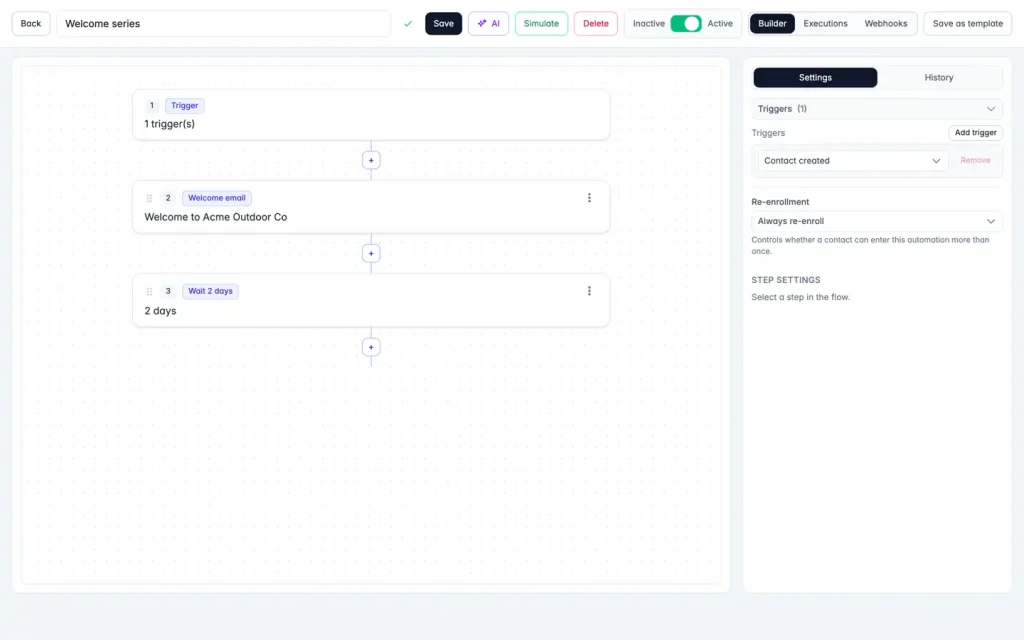
Screenshot with sample data.
FAQ
Questions, answered
Can I build a flow before my domain is verified?
You need to add a sending domain before you can create a flow. After that you can build and save it while the domain is still being verified, but activating it needs a verified sending domain.
Can I start from a template?
On Growth and above there is a gallery of premade automations, and you can save your own flows as templates.
Can the same person enter a flow twice?
That is a setting on the trigger. You can allow it, block it while they are active, or block it for good.
Does the AI turn the flow on for me?
No. It drafts the canvas. You review it and activate it yourself.
Build your first automation
Start with the welcome email. Add the rest when you need it.
No credit card required. Free plan available.